Screenshot Mode
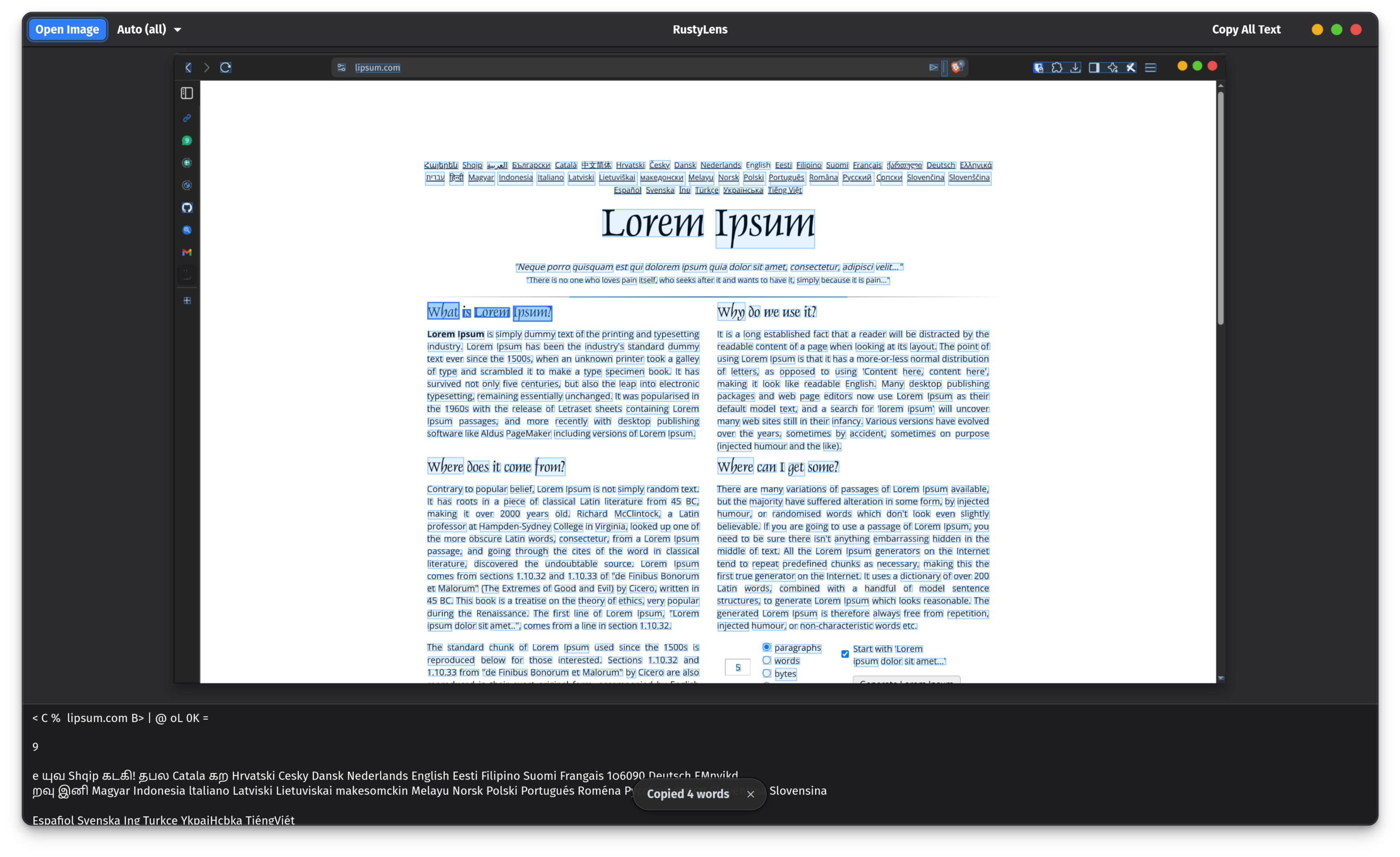
RustyLens can capture a region of the screen and immediately run OCR on it — no file needed.
Usage
An interactive screenshot overlay appears (provided by the XDG Desktop Portal). Draw a rectangle around the area you want to OCR:
- Click and drag to select the region.
- Release to confirm.
- RustyLens opens with the captured image loaded and OCR already running.
How it works
Screenshot capture uses the XDG Desktop Portal (org.freedesktop.portal.Screenshot), which works on both Wayland and X11. On Wayland desktops, the portal calls the compositor's own screenshot mechanism, ensuring compatibility with GNOME, KDE Plasma, and other compositors.
When running as a Flatpak, the portal is used automatically — no extra permissions are required.
Desktop action
The desktop entry for RustyLens includes a "Capture Screenshot" action. You can right-click the app icon in your launcher (GNOME Shell, KDE) to launch directly into screenshot mode without opening a terminal.
Troubleshooting
The screenshot overlay does not appear:
- Ensure
xdg-desktop-portaland a backend (e.g.xdg-desktop-portal-gnomeorxdg-desktop-portal-kde) are installed and running. - On X11,
xdg-desktop-portal-gtkis typically used.
Permission denied (Flatpak):
Screenshot access requires the org.freedesktop.portal.Screenshot permission. This is already included in the Flatpak manifest's finish-args. If you built a custom Flatpak without this, add --talk-name=org.freedesktop.portal.Desktop to finish-args.