GUI Mode
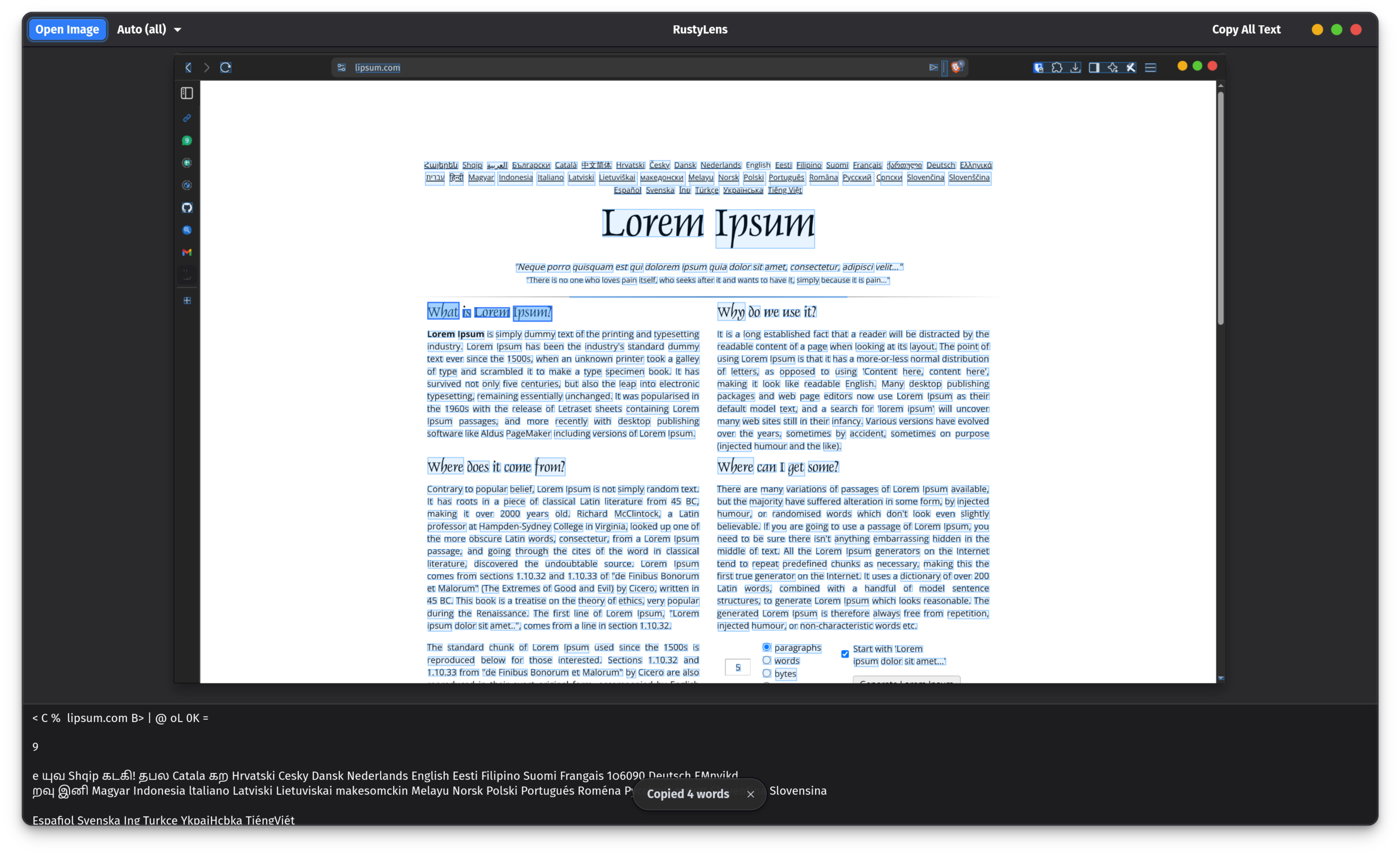
Opening an image
- Click Open Image in the header bar (or use the keyboard shortcut).
- The native file chooser opens — select any image (PNG, JPEG, TIFF, BMP, WebP, etc.).
- OCR runs automatically on a background thread. Extracted text appears in the panel below the image preview.
Reading the results
The image preview shows coloured bounding boxes around every recognised word. The text panel on the right shows the full extracted text.
Selecting and copying words
You can select individual words or a range directly on the image:
- Click a highlighted word to select it.
- Click and drag across multiple words to select a range.
- Press ++ctrl+c++ to copy the selected words to your clipboard (in reading order).
- Click Copy All Text to copy the entire extracted text at once.
Selected words are highlighted with a stronger colour overlay.
Changing the OCR language
Use the language dropdown in the header bar to switch languages. The dropdown auto-populates from all Tesseract language packs installed on your system.
- Language names are shown in full — "French" not
fra, "Japanese" notjpn, "Chinese (Simplified)" notchi_sim. All ~100 standard Tesseract codes are mapped to their display names. - Auto (all) uses every installed language pack simultaneously — useful when the language of the image is unknown, but slower and less accurate than selecting a specific language.
- For best accuracy and speed, select the specific language that matches your image.
Tip
The language dropdown is populated at startup. If you install a new language pack while RustyLens is running, restart the app to see it.
Re-running OCR
Changing the language in the dropdown automatically re-runs OCR on the current image. No need to reload the file.